Windows 11 gets custom taskbar
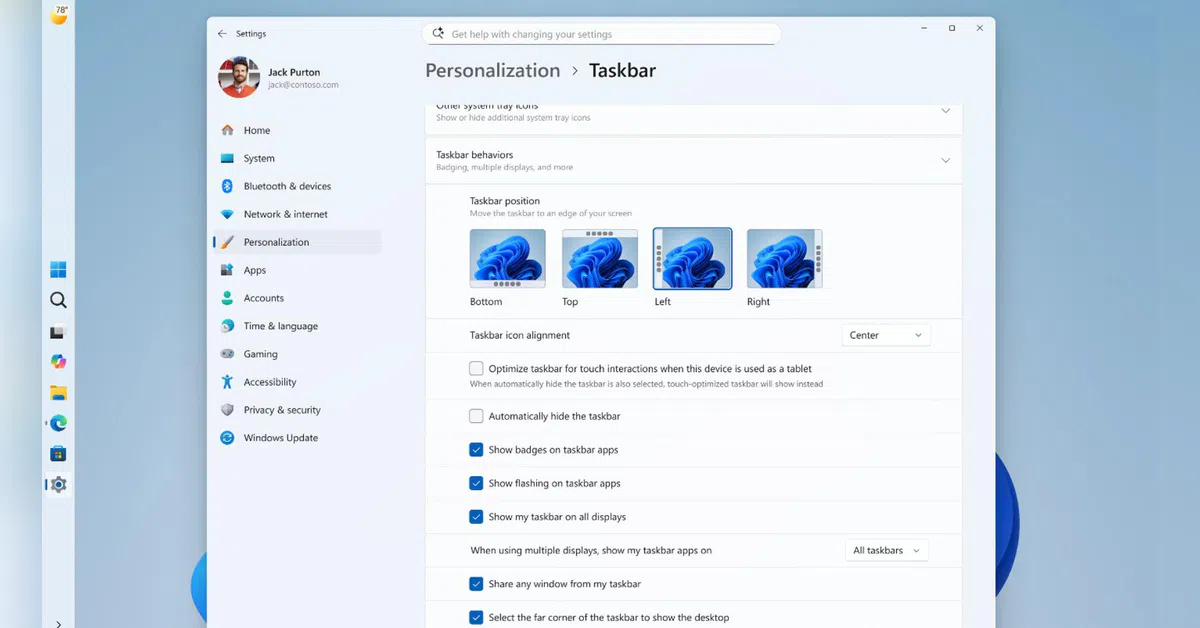
Microsoft is introducing a series of new customization features to Windows 11, primarily focusing on the Start menu and taskbar experience. The update, which is being released to Windows Insiders in the Experimental Channel, allows users to move the taskbar to different sides of the screen, use a smaller taskbar, and get more control over the Start menu layout. Microsoft said the changes are focused on improving usability, workspace management, and personalization based on user feedback.
taskbar customization
One of the major changes is the return of flexible taskbar positioning. Windows Insiders will now be able to move the taskbar to the top or side of the screen. The company noted that this is one of the most requested features and it is bringing it to Windows 11.
Here’s what’s coming for Windows Insiders:
- Taskbar position option: Users will now be able to position the taskbar on any side of the screen including top, bottom, left or right. Microsoft says this feature has been one of the most requested customization options in Windows 11.
- New icon alignment controls: Windows 11 will also allow different icon alignment options depending on where the taskbar is placed. Users can choose between a centered or left-aligned layout on the horizontal taskbar, while vertical taskbars can show icons at the top or center.
- Start and Search automatically optimize: Start, Search, and other flyout menus will automatically adjust based on the position of the taskbar. For example, when the taskbar is moved to the top, the Start menu will also open from the top.
- Each window at a glance: When using the vertical taskbar with the “Never Combine” taskbar button and “Show Labels” enabled, each app window appears as a separately labeled button, making it easier to identify and switch between windows.
Additionally, Microsoft said that users who prefer more vertical screen space, such as developers working with long lines of code, may benefit from placing the taskbar at the edge of the screen. The company said users can also move the taskbar to the top if they find it easier to access or better suited for their workflow. For those who manage multiple open apps, a vertical taskbar with different app labels can make window management easier and more organized.
Users can change the position of the taskbar by going to Settings, then Personalization, followed by Taskbar and Taskbar behavior, where new position and icon alignment options will be available.
Additionally, Microsoft noted that it is still working on additional visual improvements, performance optimizations, and fixes to some known issues before the features are introduced more widely. The company also confirmed that some capabilities are still under development and are expected to arrive later.
At the moment, auto-hide and tablet-optimized taskbar modes do not support alternative taskbar positions. Touch gestures for these layouts are also still being developed. Additionally, search boxes are currently unavailable in alternative taskbar positions and will temporarily appear only as a search icon.
Microsoft said it is also exploring more features, including different taskbar positions and drag-and-drop support for multiple monitors. The company said its goal is to keep the experience simple and stable while avoiding accidental taskbar movements.
mini taskbar
Microsoft is also introducing a smaller taskbar option in Windows 11 for users who want more usable screen space, especially on compact displays. When enabled, the feature reduces both the taskbar height and icon size, creating more vertical space for apps and content. The company said the feature is being released to Windows Insiders in the experimental channel and can be enabled through taskbar settings without requiring a restart or sign-out.
Changes are coming to the Start Menu
Microsoft said the Start menu should work differently for every user, whether they prefer pinned apps, recent files, or a more complete layout. The company is making changes to improve Start menu customization and the quality of recommendations shown by default.
Additionally, Microsoft noted that customizing the Start menu currently requires users to manage multiple settings in different sections of Windows. For example, turning off the Recommended section involves changing several settings, while removing pinned apps requires users to unpin them individually. The company said that the upcoming changes are aimed at making the process simpler and easier to manage. In the coming weeks, Insiders will get:
- Toggle individually to show or hide the pinned, recommended, and all apps sections independently for easy Start menu customization.
- A dedicated control for file recommendations allows users to turn off recommendations in Start without affecting recent files or jump lists in File Explorer.
- New Start menu size options that let users choose between small and large layouts for a more consistent experience across displays.
- Option to hide profile name and picture in the Start Menu for added privacy during screen sharing, streaming or presentation.
Improve recommendation quality
Microsoft said it is improving the content shown in the Start menu recommendations section for users who choose to keep the feature enabled.
As part of the update, the company is renaming the “Recommended” section to “Recent” to better reflect that it primarily shows recently used files and newly installed apps. Microsoft said that recently installed apps will continue to appear as many users search for apps through this section.
The company is also improving file relevance by refining which files appear and how they are organized. According to Microsoft, this will help reduce less useful recommendations and make the section more relevant to recent activity.
rollout details
According to Microsoft, these features will gradually roll out to Windows Insiders in the Experimental channel in the coming weeks. Some features are still in development, including the search box and improved touch gestures in alternative taskbar positions.